
Unity Installation Guide
In this guide we will go over how to install the correct version of Unity for this class and how to set up everything within the Unity editor.
- Go to https://unity.com/download to find the Unity Hub installer.
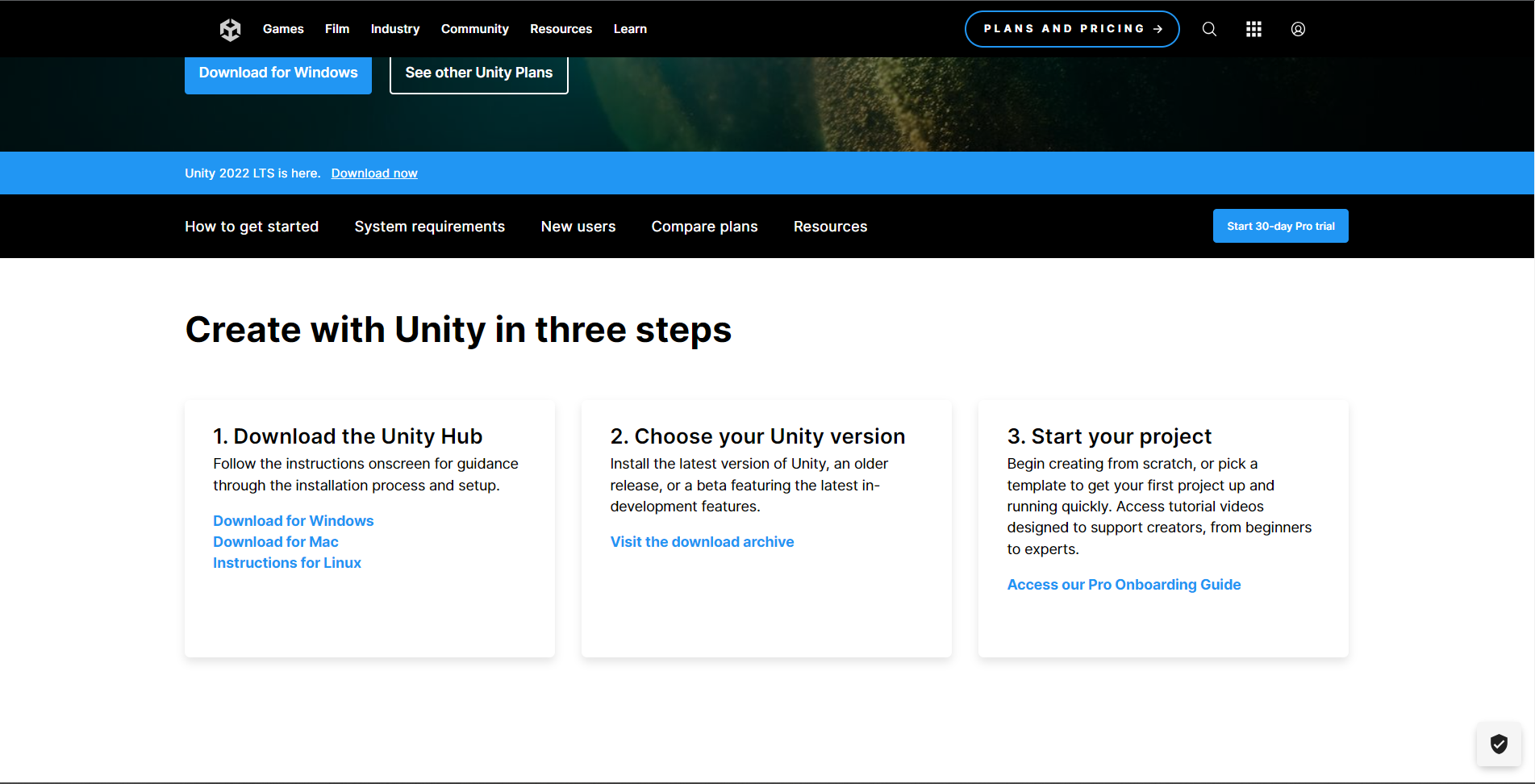
The website will provide steps itself to downloading Unity Hub. It will also provide you the download link for your specific operating system. Once you finish downloading, open Unity Hub.
Creating an Account
Depending on your current version of Unity Hub or your current operating system, you may be presented with a different user interface. In most cases, Unity Hub will ask you to sign in or sign up for a Unity account (Unity ID).
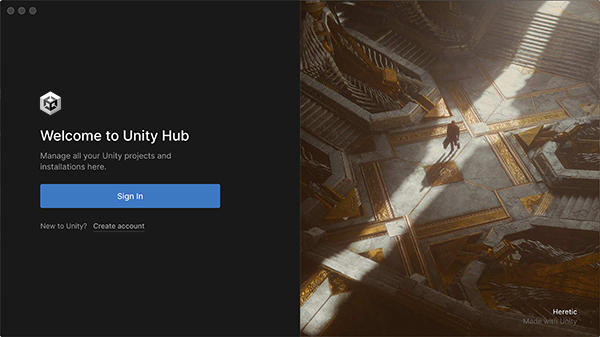
Alternatively you may see a user icon on the top right of Unity Hub where you can also sign in and create an account.
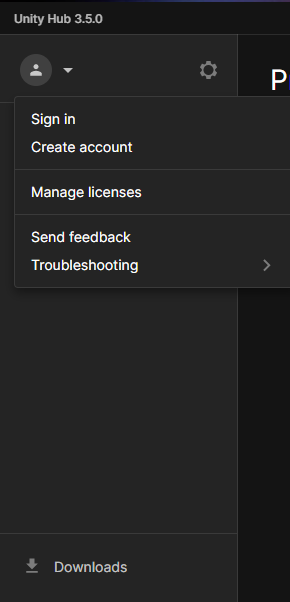
Once signed in, it may also, if not automatically, ask for a license. From the image above, click the "Manage licenses" to view or add a Unity license. From here, if you have a license automatically added, you should see your license type and activation date added like the image below.
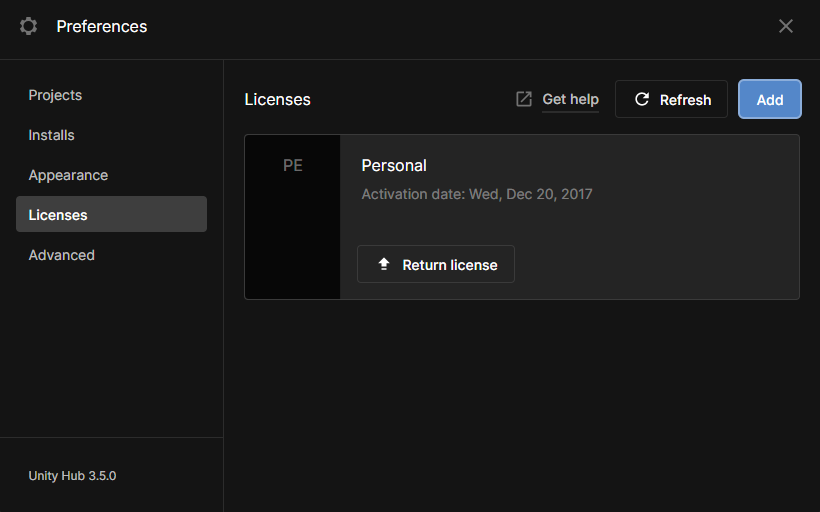
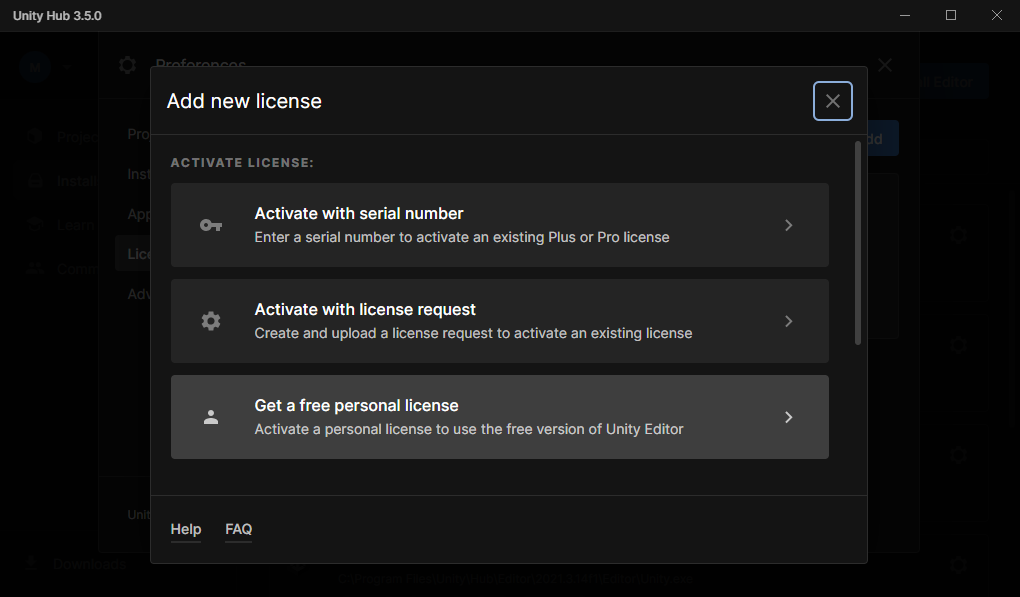
If you do not have a license added, click the Add button on the top right where you can add a license in different ways. We recommend choosing the "Get a free personal license."
Installing a Unity Editor
Once you are signed in and have added a license, you would now need to install a Unity editor. There are many different Unity versions you can download. In order to ensure that you can run the Unity projects we provide you throughout this course quickly, we need you to install specifically 2021.3.25f1.
- Go to Unity's website for LTS installs.
- Browse through the pages until you find an entry titled "LTS Release 2021.3.25f1."
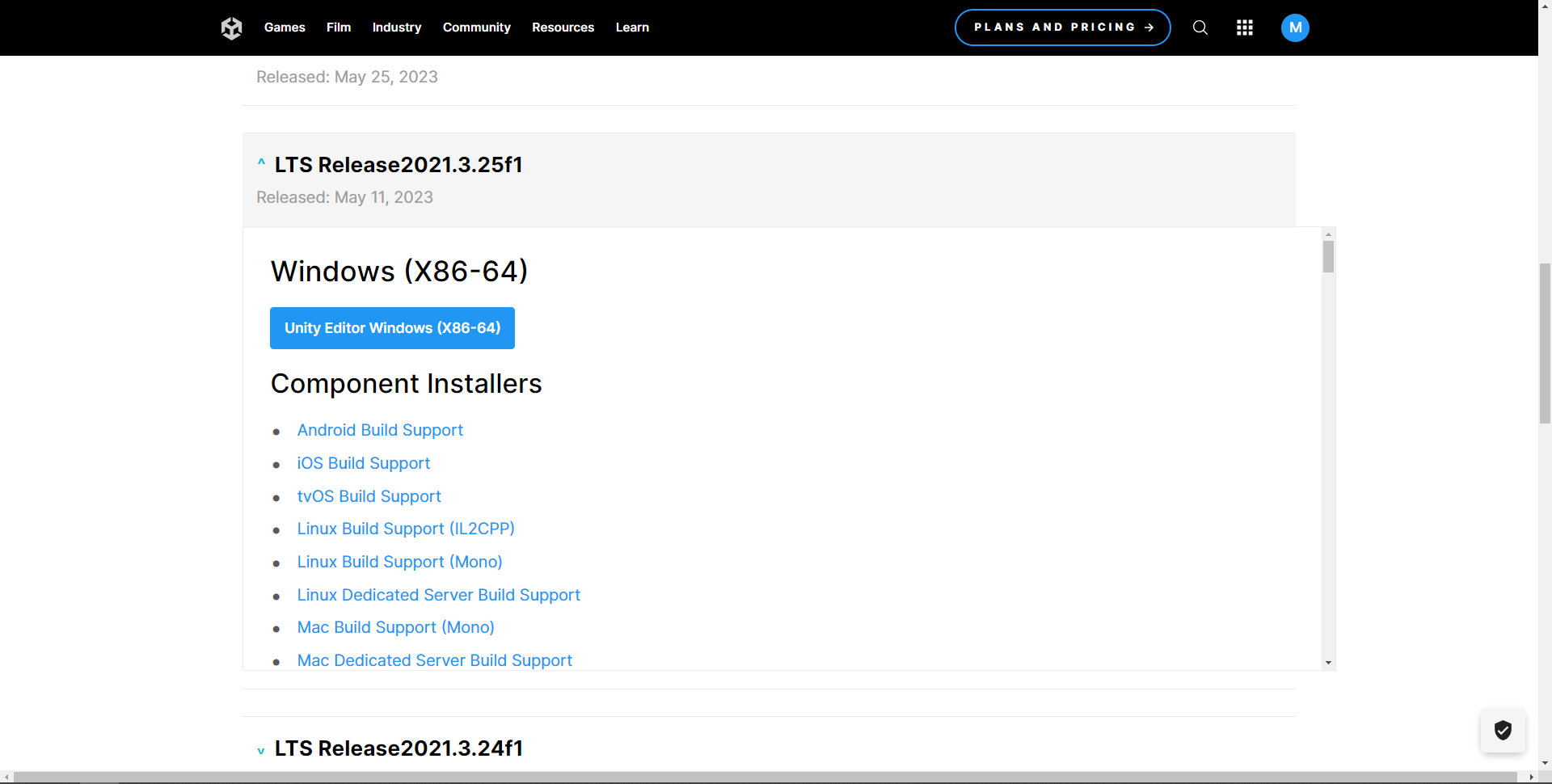
- Expand it and download the editor. It will take a moment.
- Once the editor is done downloading, open up the installer. Go through the installer until you reach this page.
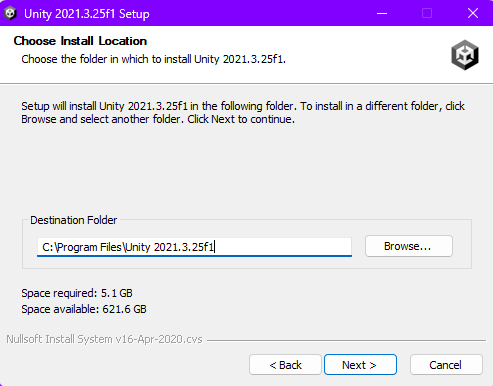
- Keep note of the destination that the editor will be installed in. This will be important later. Afterwards, you can proceed with installing Unity.
- Once finished, open up your the Unity Hub again. On the left hand tab, click on "Installs," and then click on "Locate."
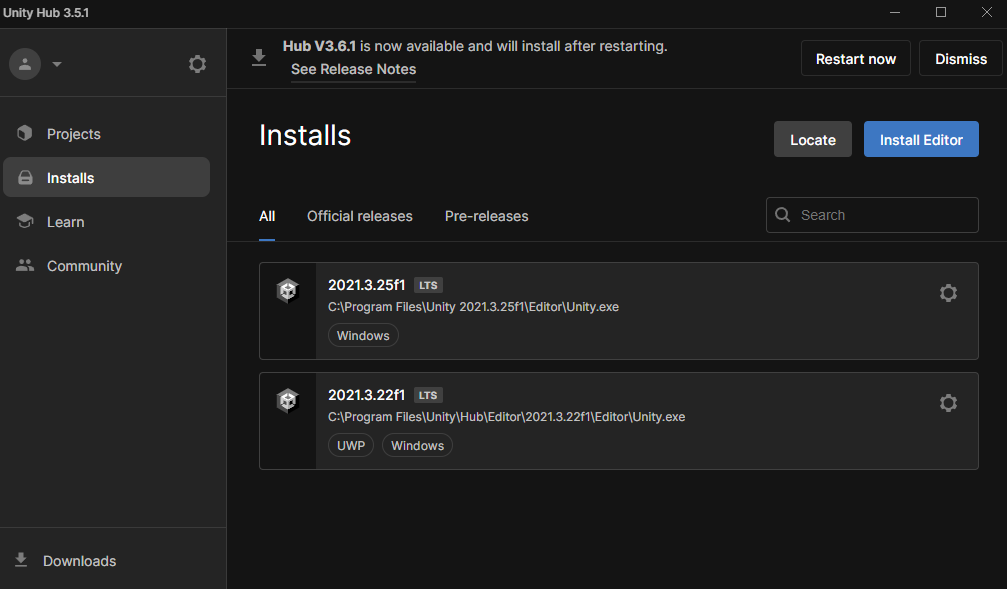
- You will have to use the path that you copied in step 5 to find where your Unity editor was installed at. For Windows users for example, the default path given is "C:\Program Files\Unity 2021.3.25f1".
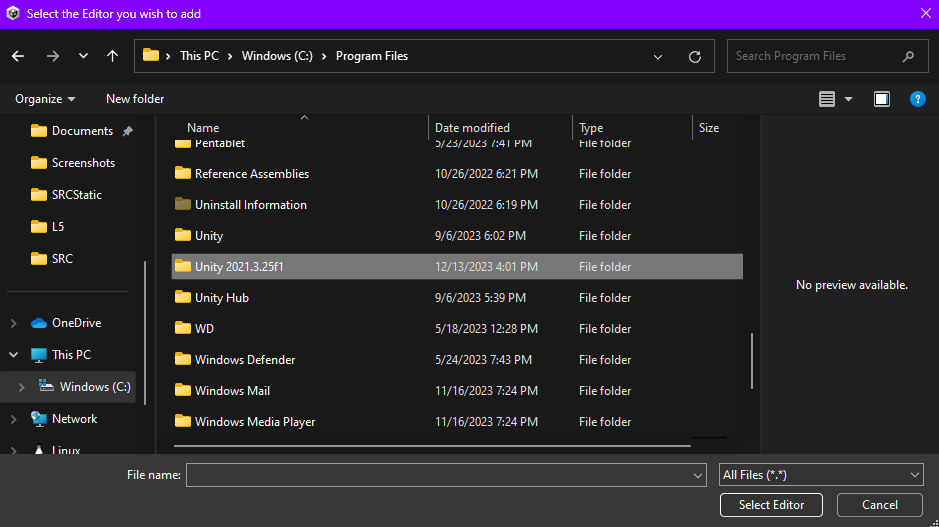
- Once you have found the folder where your editor is, open it. Locate the folder inside of it named "Editor".
- Locate an application named "Unity" inside the "Editor folder. Click on "Select Editor."
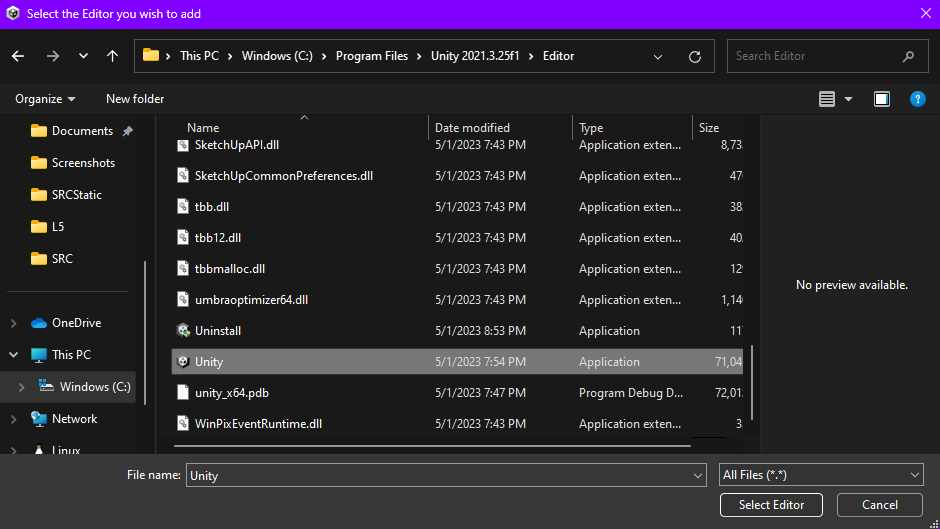
- Once finished, your editor should appear in your Unity installs.