Python Student Preparation
Overview
Python 3 is a fun class as you will be learning advanced Python skills while making your own little games! Here are some things we need to get familiar with before we start coding.
- repl.it
- Local Setup
- Share My Works
repl.it
repl.it is a website that lets you run programming code in many environments (not just Python!). This lets you run Python code without having to install anything on your computer, and also lets you run your code from any device since it runs on the cloud. Do note that since repl.it is a very commonly used site and since free accounts are given only so much server space, projects ran on repl.it may run slowly. This is normal.
Setup
Start by going to repl.it and create an account.
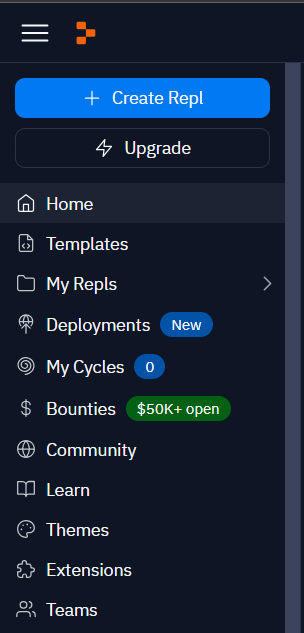
Then, in your dashboard, go to the left-hand sidebar and click on "Create Repl."
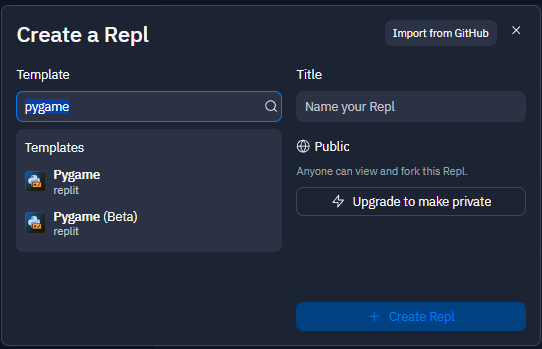
In the following popup, select the "PyGame" template and give your repl a name. It's important that you choose PyGame. Otherwise, your repl.it won't be able to handle it.
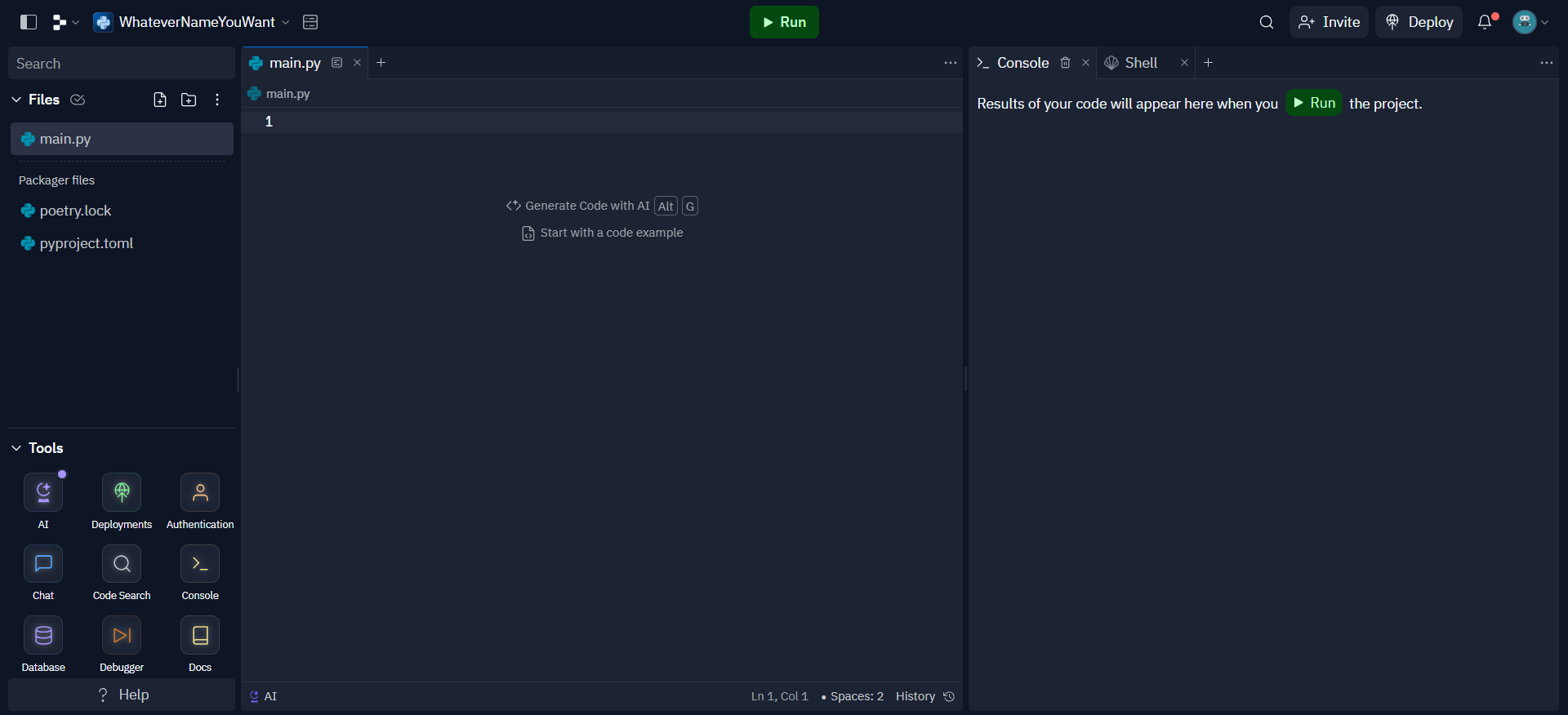
Lastly, once your repl is finished loading, then it should look something like this:
Using repl.it
Have your students create a repl account if they have not done so already. Then instruct them to create a new repl with Python. They can name the file "Python 1 Module X: Lesson Y" (X being the current module and Y being the current lesson).
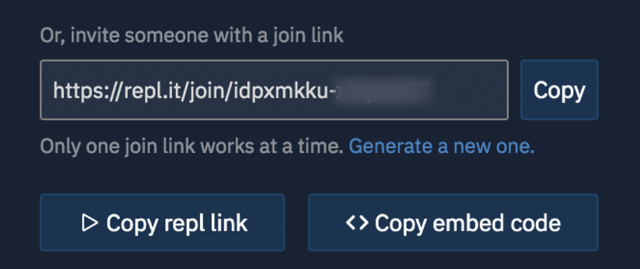
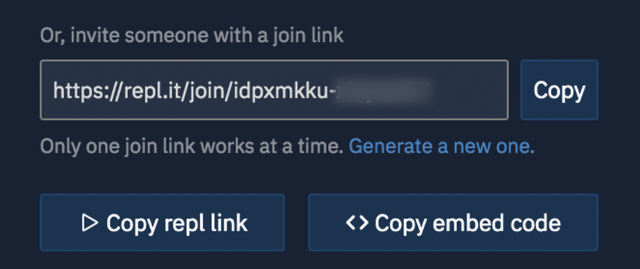
Repl has a feature where you can code along with students in real time. Click the share button at the top right and copy the link towards the bottom of the pop-up window.
Local Setup
For international students, or for those that have problems running PyGame on repl.it due to latency (lag), you can go for a local installation instead.
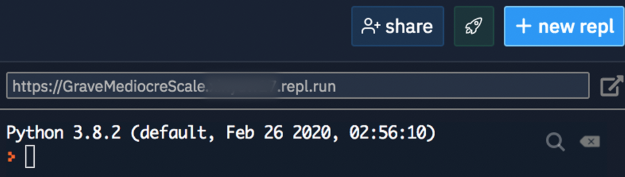
First, go to the official Python website to download an installer. From there, you should be able to follow the instructions and have Python run in your terminal. MacOS and Windows should both have a terminal application. To test if Python runs in your terminal, open a terminal window after installation and enter "python" as a command and press "Enter." If the following shows up, you're good to go. What just opened was a Python interpreter, but you're not going to use it, so you can exit by typing in 'exit()' as a command.

The PyGame Library
PyGame is installed using the PIP console tool, which should be preinstalled with your Python environment.
- Open the command prompt or terminal.
- Enter the command or
pip install pygame. The latter command is used if Python 2 is installed on the system already.pip3 install pygame
IDE
An IDE stands for an Integrated Development Environment. It is basically an editor that helps you code better and faster. There are many, many IDEs that you can use for Python development. Probably the simplest you can go for is VSCode. As long as you have a way to make and run Python files, then you're good to go. We recommend that you install VSCode and install the Python extension.
Share My Works
https://www.sharemyworks.com/ is the website to upload your projects (e.g. published links, Python files).
Towards the end of class, your instructor will ask you to go to Share My Works and upload your repl link or project file.
Click on "Course Dashboard" to see the list of all current classes you are enrolled in.

Click on the class you want to upload your project to.
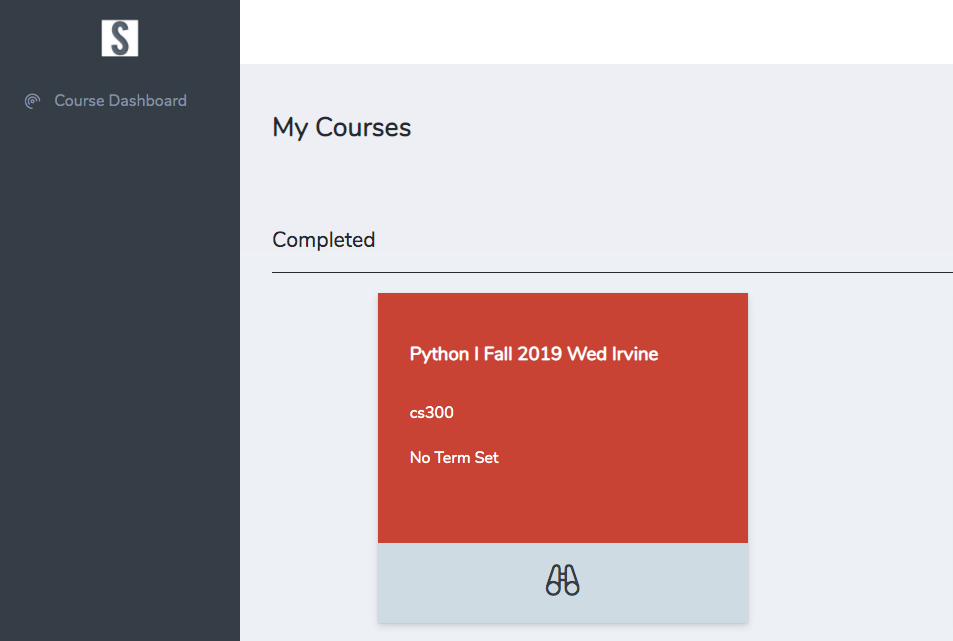
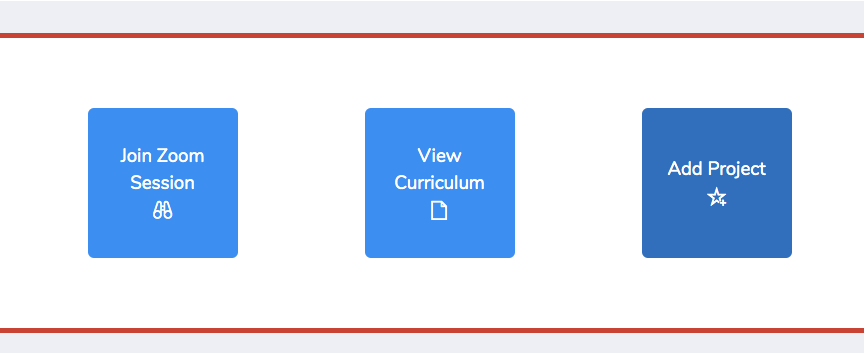
Click on the add project button towards the top right of the website.
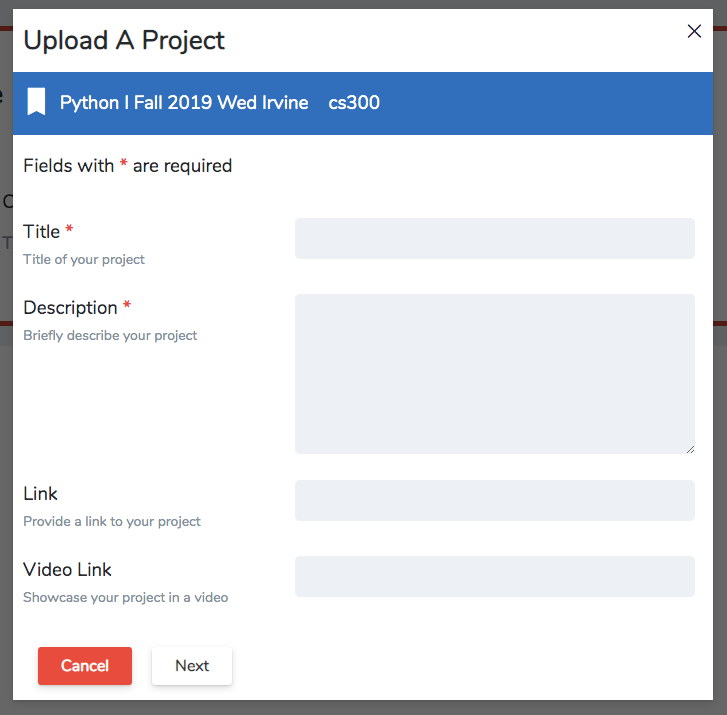
Enter the title, description, and link/file to your project.
For the link, go to repl and click on the "Share" button towards the top right of the website.
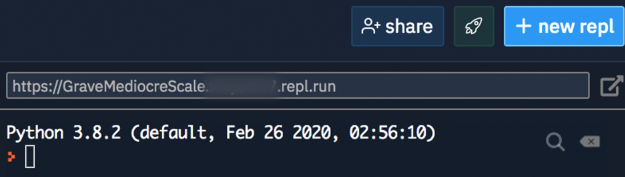
Copy the link towards the bottom of the pop-up window, then paste the link into the link section on ShareMyWorks.